
SE XPERIA X10 mini - Organizer, GPS & Android Market
Organizer does the job, with some help from the Android Market
Our Sony Ericsson XPERIA X10 mini came with no preinstalled document viewer so we had to snatch one off the Android Market. There is plenty of choice there so we don’t consider it too much of a disadvantage.
When you download an app it automatically integrates with the Gmail app as well, so you can view attachments. Unfortunately, you can’t save them in the phone memory (that only works for images). Attaching saved files (and we mean all kind of files) is possible though.
The other disadvantage is we didn’t find a free app that also supports editing so if you decide to edit documents on the X10 mini (highly unlikely anyway) you will have to spend some.
The calendar has only two view modes - daily and monthly. Adding a new event is quick and easy, and you can also set an alarm to act as a reminder.
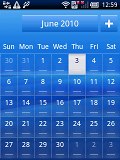
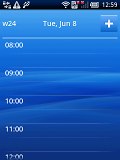
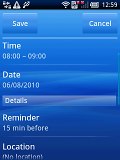
The calendar offers monthly and daily view modes only • Setting up an event
There is also a calculator, a timer and a stopwatch aboard. Those are all nicely touch optimized - the buttons are big enough and easy to hit.
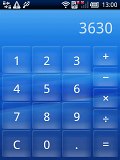
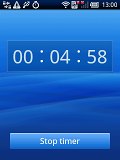
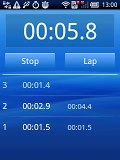
Calculator, timer and stopwatch are also available
The XPERIA X10 mini features a decent alarm clock application, which allows a huge number of alarms to be set, each with its own start time and repeat pattern.
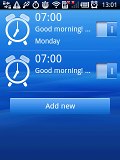
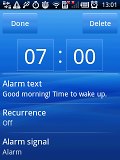
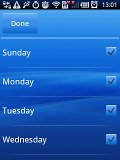
Alarm clock app offers all you will ever need
The RoadSync applications, which also come preinstalled use the Microsoft Exchange ActiveSync protocol to provide push synchronization of your corporate email, contacts and calendar.
Finally comes the YouTube app which, as we said, partially compensates for the web browser's lack of Flash support. Its interface is simple enough to let you find whatever you're looking for as quickly as possible.



The YouTube works fine
GPS navigation
It comes as no surprise that with the X10 mini you have Google Maps out of the box. Multi-touch doesn't work and double tapping won't do either. To zoom in and out you use the two virtual buttons at the bottom of the screen. These are hidden when not in use and only appear when you touch the screen.
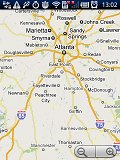
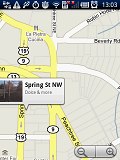
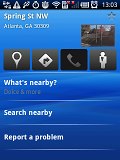
Naturally Google Maps is on board
A tap-and-hold on the screen activates Street view. As usual, you can enjoy the 3D view of the area, which is controlled by sweep gestures with impressive fluidity. They can also make use of the built-in compass for an even better experience – just hold the phone in your hand and turn around and Street view will follow you.
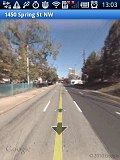
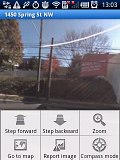
Voice-guided turn-by-turn navigation isn't available on the X10 mini’s Google Maps. Still, there is some kind of navigation: your route and current location appear on the screen so you'll be able to reach your goal, assuming you can read maps of course.
However, the other preinstalled map application is Wisepilot to pick up where Google Maps left. The thing about Wisepilot is that it requires a license for voice guided navigation and it downloads data over the Internet. That makes it unsuitable (or at least really expensive) for using abroad.
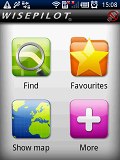
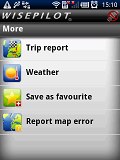
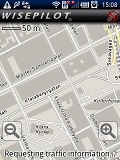
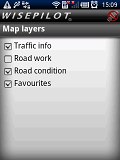
WisePilot comes preinstalled and does voice-guided navigation
There are already several ways around that of course. The Android Market offers a dozen of applications so it’s up to you to pick one that best suits you. The problem is that the screen and the phone itself seem too small to use for navigation but we guess everyone should judge that for themselves.
Android Market has what you need
We mentioned the Android Market in the previous section and we found SatNav software, both free and paid, with very little effort. Since we haven’t heard of some of the apps, user ratings were a good clue of what’s worth checking out and user reviews helped us decide which ones to download.
The Android Market made a very positive impression – the number of available apps is growing by the day and a good deal of them is free. In fact as it turns out, if you’re after free apps, Android Market has a larger percentage of those than any of the application stores of the competition. The Market organizes apps and games into two separate tabs, and each tab shows the best in the relevant category. The third tab keeps track of what you’ve already downloaded.
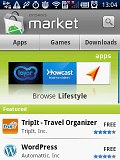
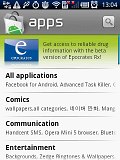
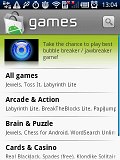
The Android market will cover your 3rd party software needs
Searching is very easy – just tap the search button, type what you’re looking for (e.g. “navigation”). From then on, it’s pretty easy to choose – each app has a rating, a short description by the author, user comments and screenshots.
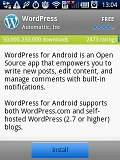
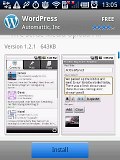
Checking out a single app details
Applications vary from pretty basic tools (such as the one that turns the display into a flashlight) to real must-have's (including file managers, navigation software and more), but that’s true for every other app store.
(Click here to go back to the main menu.)


No comments:
Post a Comment